
About Our System
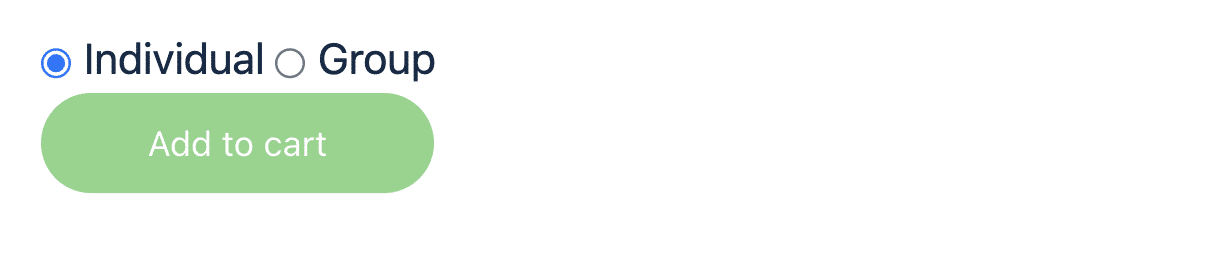
When ordering a course, you can choose between “Individual” or “Group“.
- Individual: The course is linked directly to the account used to place the order. Choose this option when you will take the course yourself.
- Group: Choose this option when someone else will take the course. You can create a group with just one licence. Use “Group Management” to add students easily. Each student receives their own account with access to the course.
Can’t find your answer here?
Check out the FAQ (frequently asked questions) or send a message to DG-Learning Support via contact.
Order a course as an individual
When ordering the training course, check the “Individual” box and click “Add to Cart.” Enter your information here and select your preferred payment method. Your account will be created immediately upon receipt of your order. You can begin the training course once payment is received or approved by DG-Learning. If you already have an account, the training course will be added immediately after payment or approval.
Order a course as a Group Leader
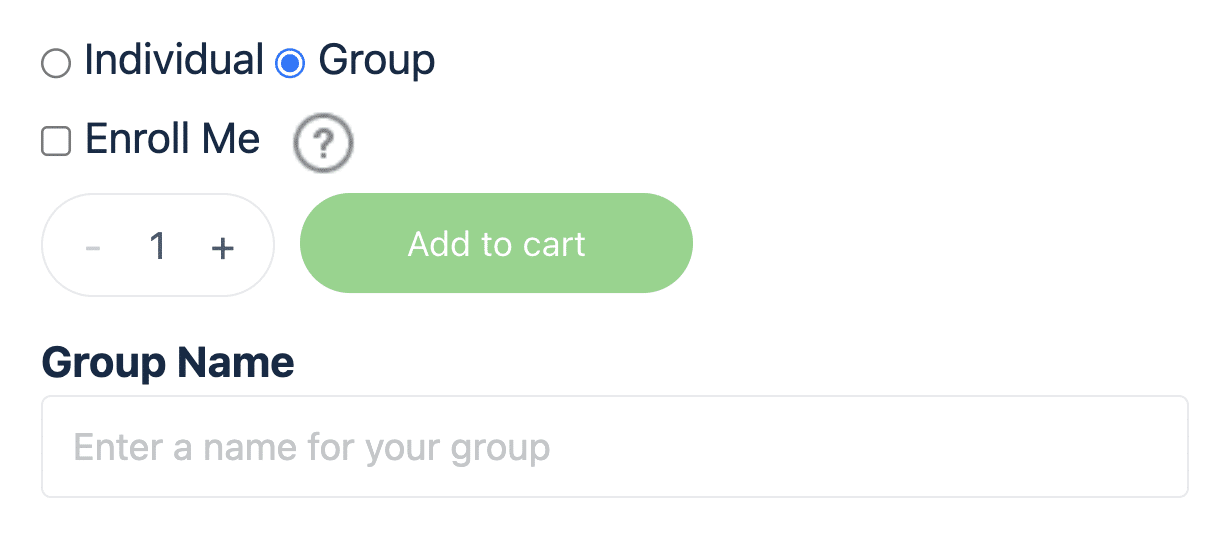
As a group leader, you can choose whether or not to participate in the course. When “Sign me up” is checked, you will be counted as a group member and you too can attend the course. If this is not checked, the group leader is not included. The group leader is then only authorized to view the progress and results of the group members but cannot attend the course himself.
Enter the number of licenses and a name for the group. Click “Add to Cart” and then enter your information. Your account will be created immediately upon receipt of the order. Once payment is received or DG-Learning approves your order, you can start the course and add users to your group. If you already have an account, the course and group will be added immediately.
Payment methods
 iDEAL / Wero
 Bancontact (only for Belgian customers)
 Credit Card
 Klarna (pay later)
 Bank transfer: If you pay by bank transfer, you have 30 days to complete the payment. An account is created for you immediately after placing the order. You will receive a pro forma invoice by email containing our bank details. The course and associated group will be added to your account within 24 hours after we receive the payment or after the order has been approved by DG-Learning. You can then enrol students via Group Management.
Bulk discounts
| Title | Quantity | Discount |
| Regular price | 0 – 9 | 0% |
| Bulk Discount | 10–24 | 5% |
| Bulk Discount | 25–49 | 10% |
| Bulk Discount | 50–74 | 15% |
| Bulk Discount | 75–99 | 20% |
| Bulk Discount | 100+ | 25% |
*Bulk discounts cannot be combined with other discount codes.
Your account
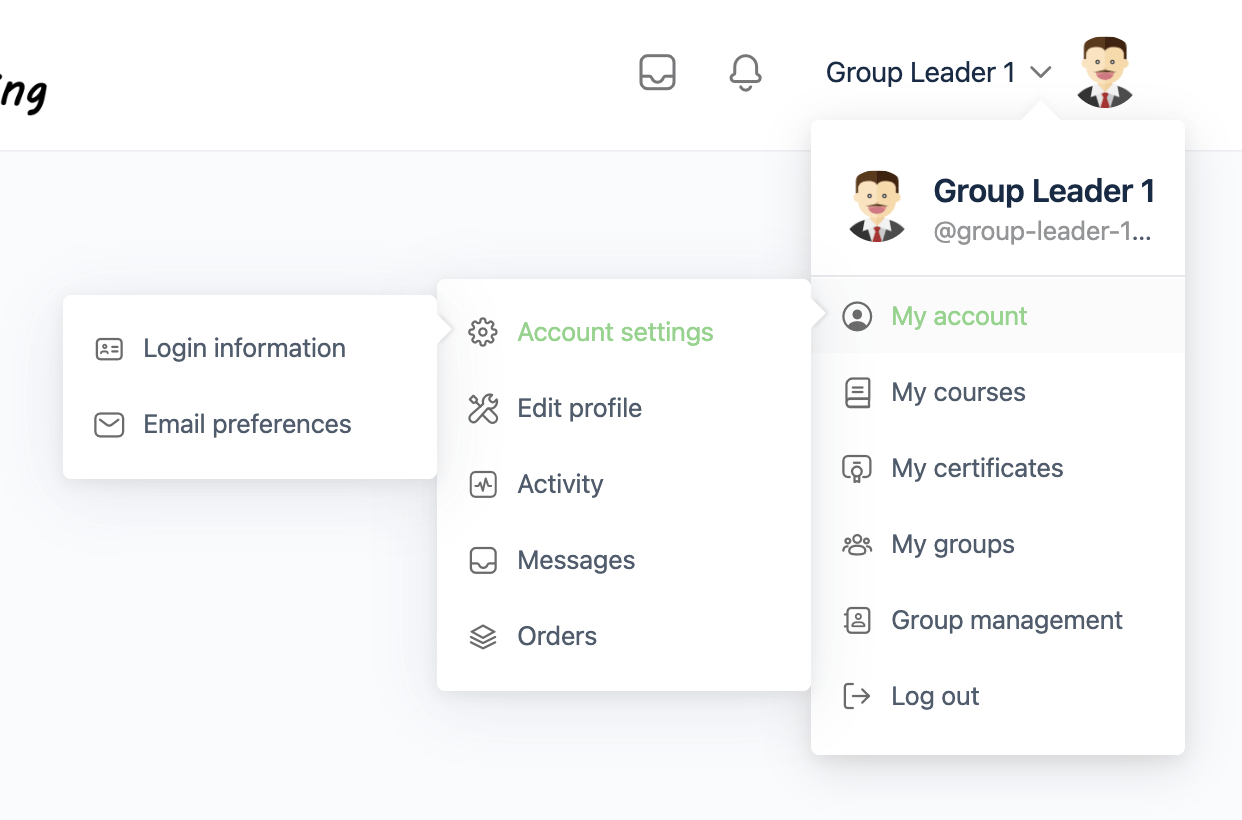
From your account, you can start, pause and continue the trainings. On the “Courses” page, all your active courses and obtained certificates can be found. Here you will also find your login details, email preferences, orders, messages and you can navigate to the group(s) in which you are registered.
Your account will remain active until you delete it yourself. You can delete your account at any time via your account menu -> My Account -> Account Settings -> Delete Account. Please note: This will delete all your data. This action cannot be undone.
Your profile
It is possible to add a profile picture to your account/profile. You can also change the default cover photo to your desired image by simply selecting a file on your device.
Your first name, last name, and email address are visible to the group leader(s) of the group(s) in which you are enrolled. In addition, they can download the certificates and view all progress and results for the training sessions in the group in which you are enrolled.
Users who are members of the same group cannot access information from your profile.
View the profile of DG-Learning, Jim de Winter ro Glenn de Winter (www.dglearning.eu administrators) as an example of a user profile. Only the profiles of DG-Learning.eu administrators are public. All profiles of DG-Learning users are hidden from website guests and other users.
Group Management
On the “Group Management” page there is the ability to add users, view progress of group members and download quiz results.
Enrolling students
Navigate to the “Group Management” page via the account menu. If you manage only one group, it will open immediately. If you manage multiple groups, you will first see an overview where you can select the desired group.
Open the group in which you want to enrol students and click the blue “Enrol new students” button. Enter the first name, last name and email address of each student you want to add. To enrol multiple students at once, click “Add more students” to add extra input fields.
You can enrol up to 50 students at once using “Bulk entry”. Paste the details below the example or upload a file. Use one row per student and follow this order: first name, last name and email address. Check the details before clicking “Submit”.
After entering the details, click “Submit”. One licence is used for each student who is successfully enrolled. The number of remaining licences is shown below the group name at the top of the “Group Management” page.
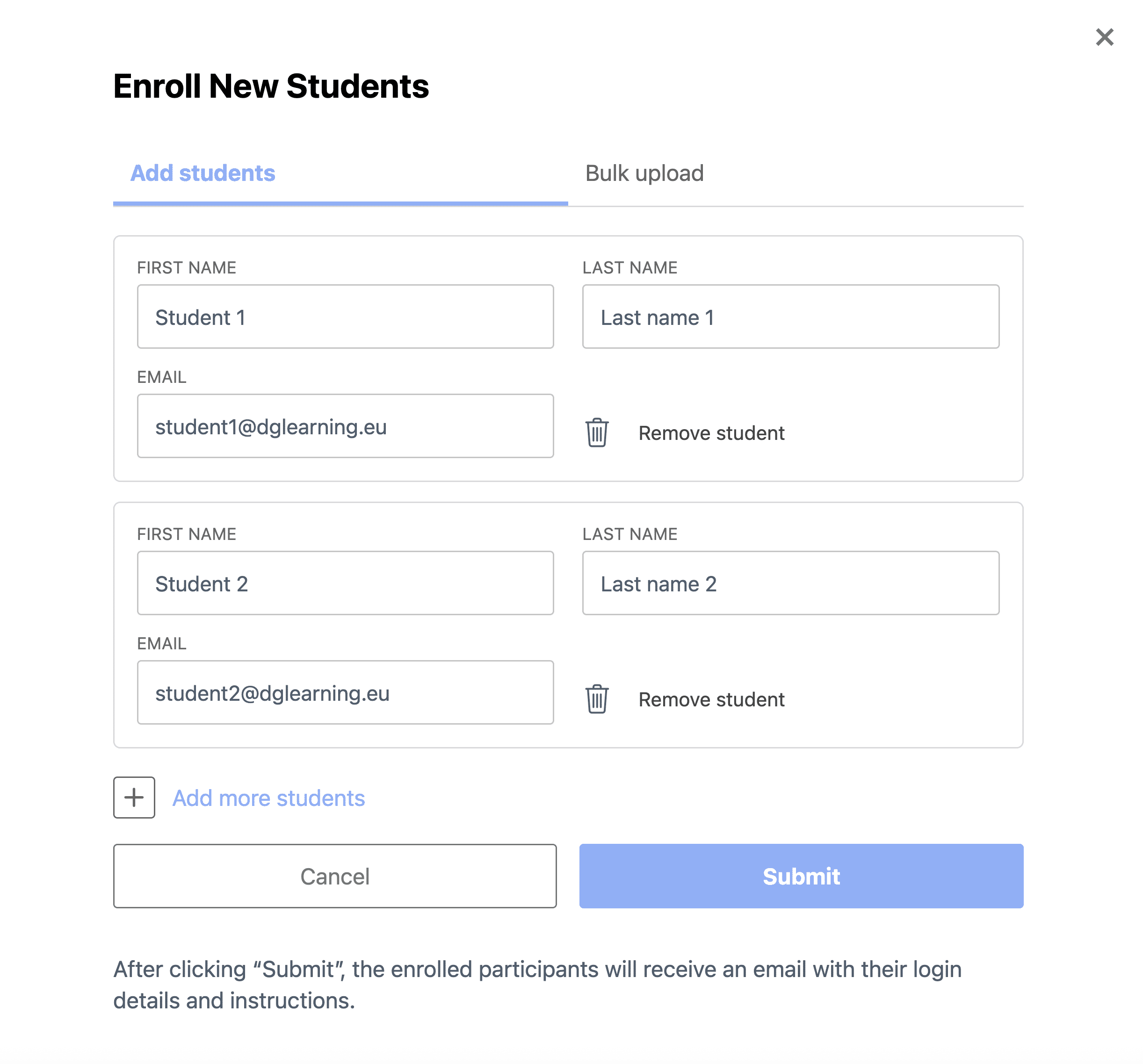
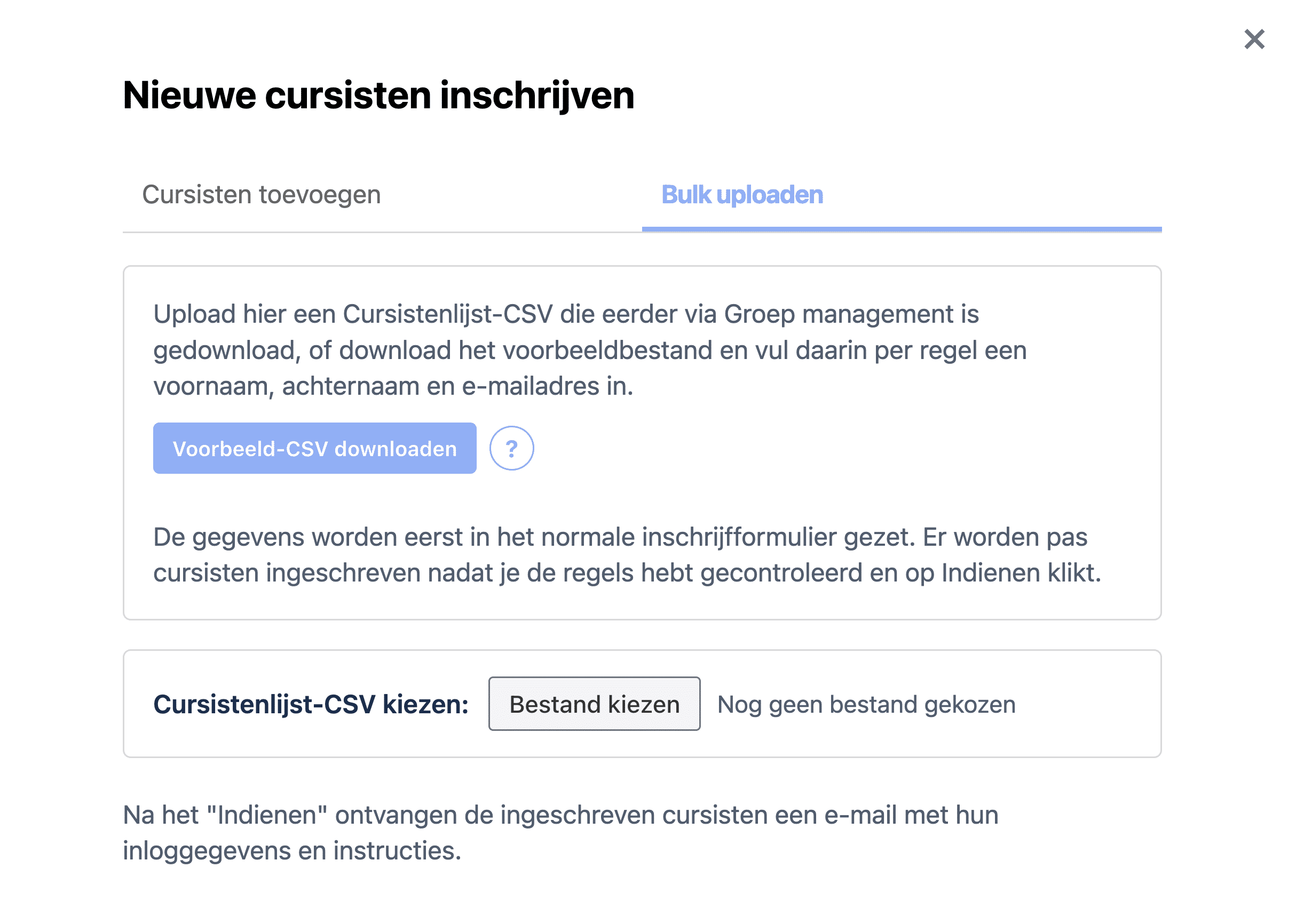
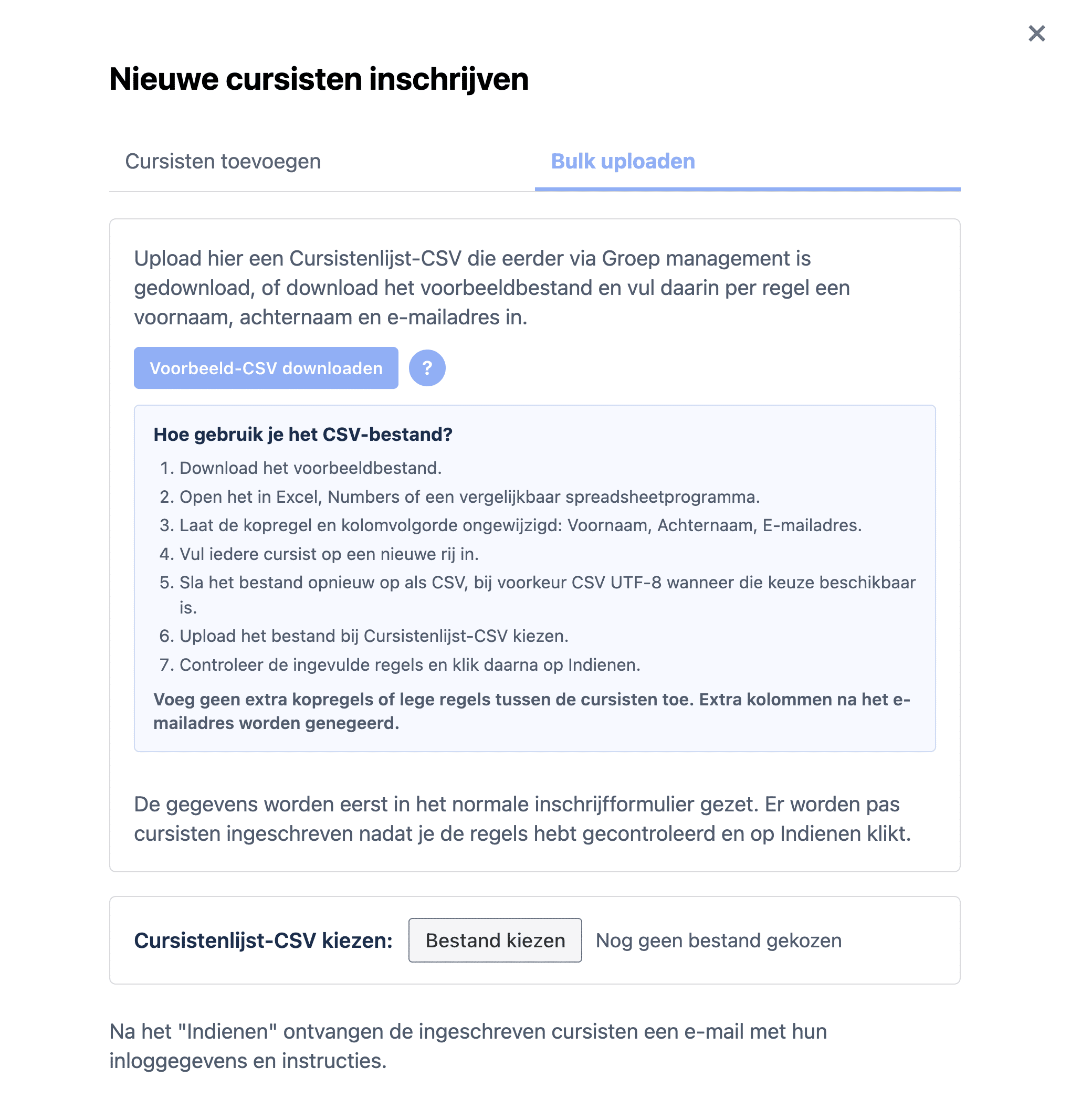
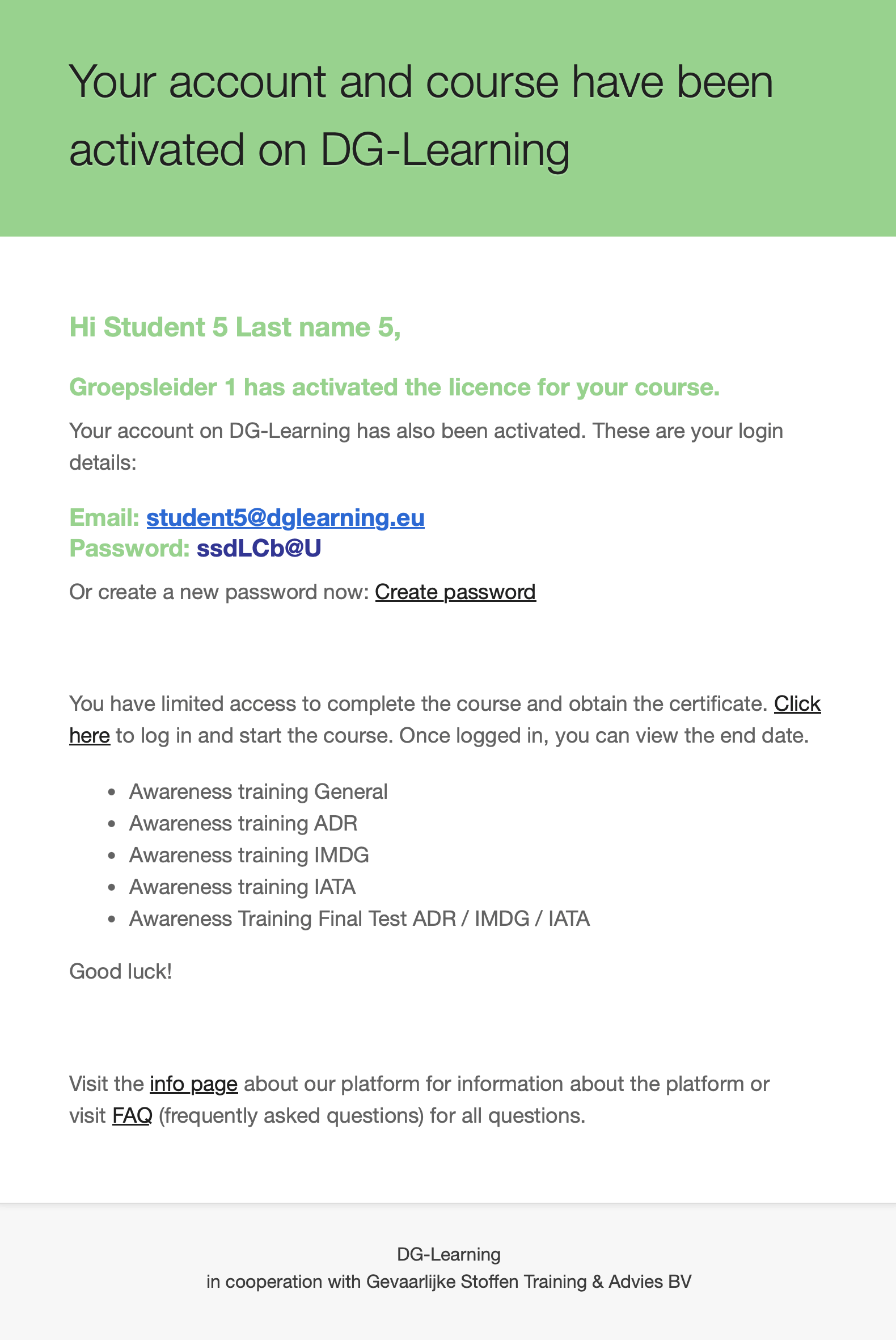
Once the details have been submitted, the students are added to the selected group. An account is created automatically for each new student. They then receive an email containing their login details and information about the course.
If a student has not received this email, or you would like to remind them that the course is ready, select the student and click the green “Send reminder” or “Re-Invite” button.
Fourteen days before access to the course expires, the student automatically receives a reminder email. You can find all students in the group under the “Enrolled Students” tab.
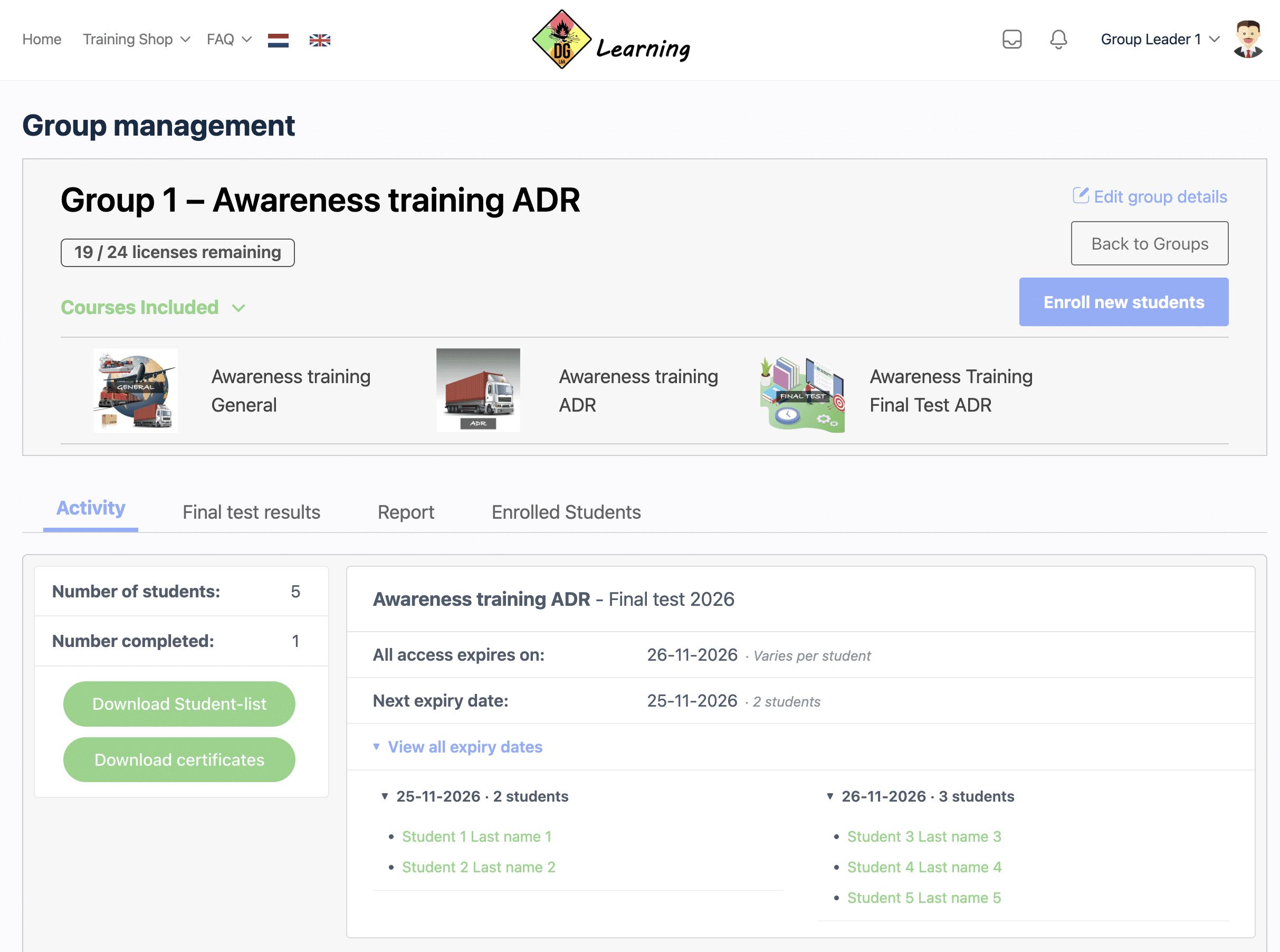
Group overview
At the top of the page, you can see the name of the selected group and the number of licences still available. Click the number of remaining licences to order additional licences for the group.
Use “Edit group name” to change the name of the group. Under “Courses included“, you can see which courses are linked to the group. If you manage multiple groups, click “Back to groups” to return to the overview of all your groups.
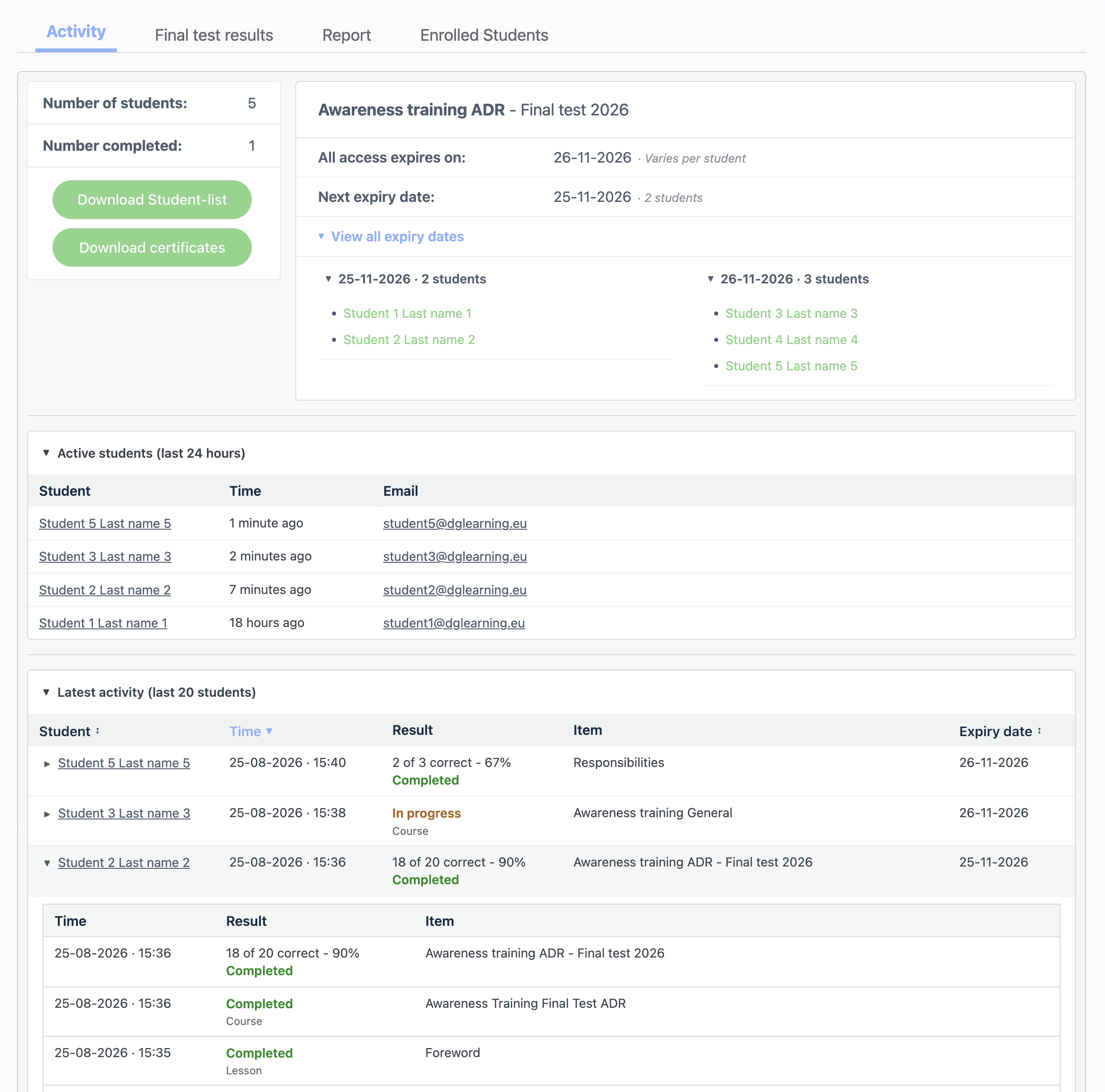
Activity tab
Under the Activity tab, you will find an up-to-date overview of the progress and activity within the selected group.
At the top, you can see the total number of students and how many students have completed the course. You can also download the student list and available certificates here.
The course expiry dates are also displayed. All access expires on shows the date on which access expires for all students, when this date is the same for everyone. Next expiry date shows the first upcoming date on which access will expire for one or more students. Select View all expiry dates to open an overview of the expiry date for each student.
Under “Active students (last 24 hours)“, you can see which students have been active during the past 24 hours and when they were last active.
The “Latest activity (last 20 students)” table shows the most recent activity of up to twenty students. You can see when a student was active, which part of the course they were working on, the result or status and, where applicable, the score achieved. The date on which their access to the course expires is also displayed. Click the arrow next to a student’s name or click the relevant row to view more information about their activity.
Click a student’s name to open their profile and view all of their activity. Click their email address to send a private message. The student will automatically receive an email notifying them that a message is waiting, including the content of the message itself.
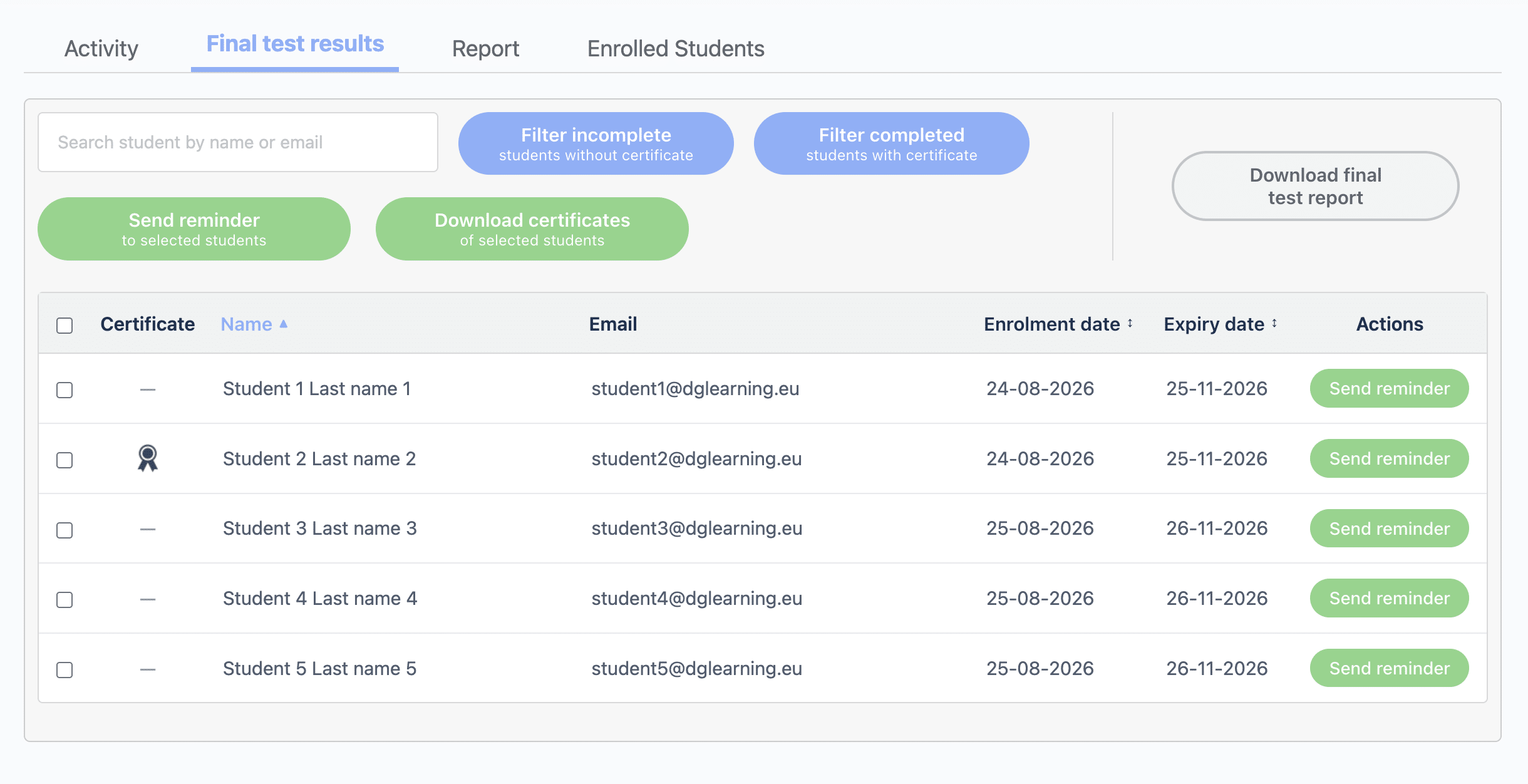
Final test results tab
Under the Final test results tab, you will find an overview of all students within the selected group and their corresponding certificates.
Use the search field to find a student by name or email address. The filters allow you to display only students who have not yet completed the final exam or students who have passed and received a certificate.
Select one or more students using the checkboxes. You can then send a reminder email or download the available certificates for the selected students. Click “Download final exam report” to download a report containing the final exam results. You can also download all certificates obtained within the group.
The table shows whether a certificate is available for each student, along with their name, email address, enrolment date and course expiry date. You can also send an individual reminder email to a student using the “Send reminder” button.
Click a student’s name to open their profile and view all of their activity. Click their email address to send a private message. The student will automatically receive an email notifying them that a message is waiting, including the content of the message itself.
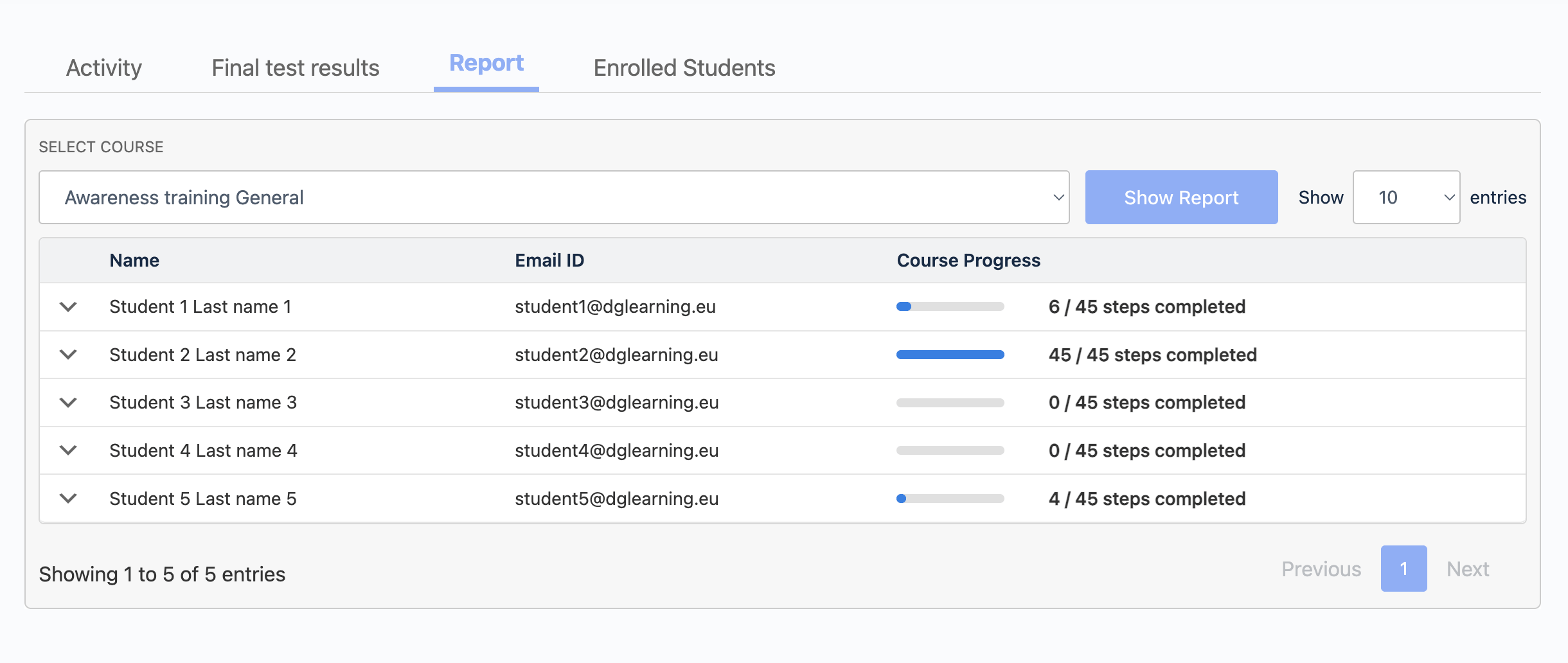
Quiz Report tab
On the “Group Management” page, open the group you want to view and go to the “Quiz Results” tab. Select the desired module and click “Show results“.
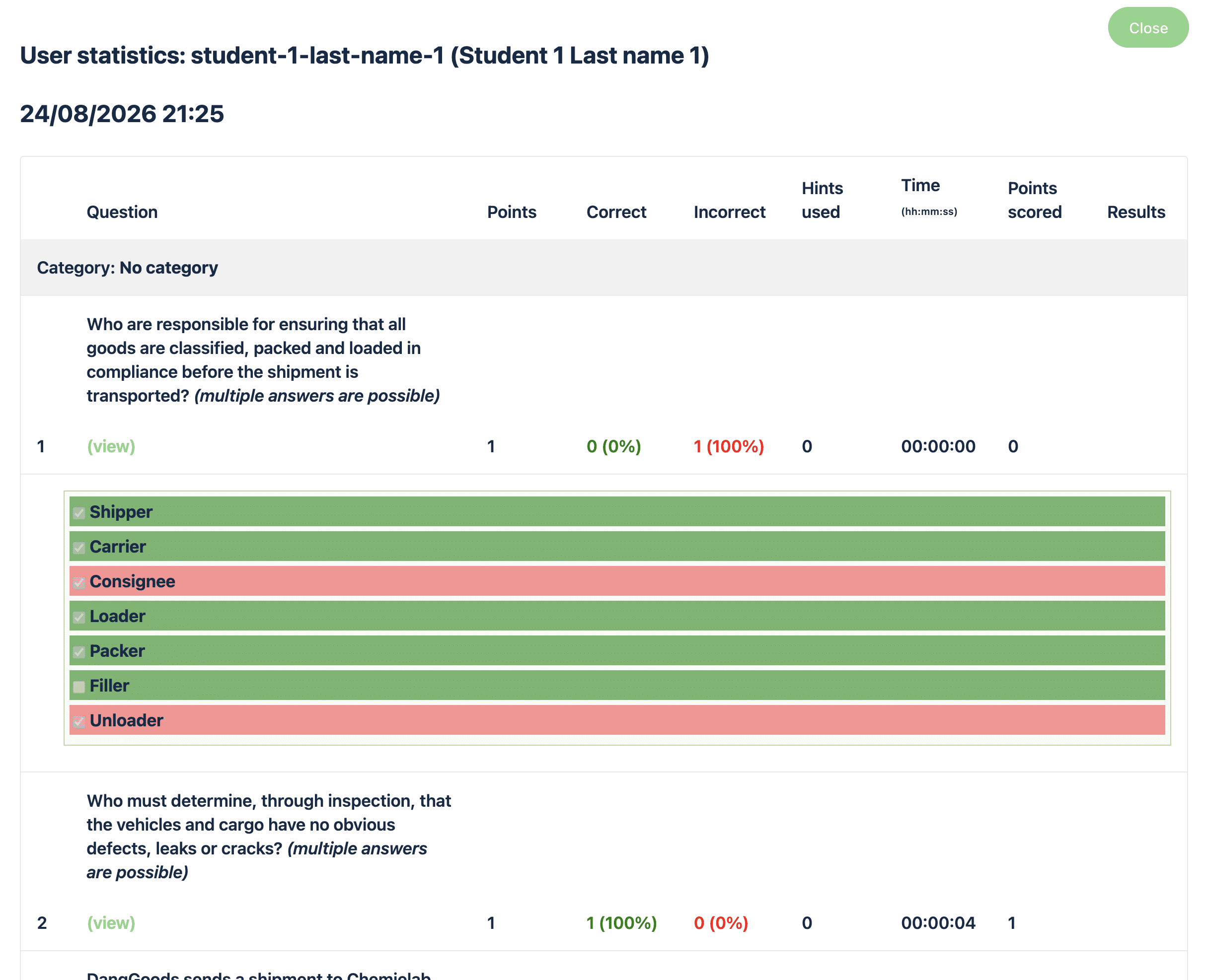
The table shows each student’s progress within the module. Click the arrow next to the student’s name to view their quiz results. For each quiz, the score and the date and time of completion are displayed. If a certificate is linked to a quiz, it is shown in the “Certificate” column. Click the icon under “Statistics” to open the detailed quiz results. Here you can see for each question whether the answer was correct or incorrect, the number of points achieved, any hints used and the time taken to answer the question.
Next to each student, you can see how many steps of the module have been completed. Chapters and sections are included in this count; quizzes are not counted as completed steps.
The “statistics icon” is displayed with each quiz. Clicking on it will take you to a new window that displays expanded results for each quiz question. The answers given by the user and thereby the correct and incorrect answers per question are shown in a clear table. This also shows how long it took the user to complete the quiz question.
Courses
Awareness training courses are available for 3 months starting from the day of registration/payment. You can pause the training at any time. You’ll then continue from where you left off. Chapters and sections are covered in a linear fashion. You cannot skip chapters, sections, and/or quizzes. Most chapters and sections conclude with practice questions—it’s okay to make mistakes! You’ll earn your certificate by achieving a passing score of 70% on the “final exam” module. Read more about certificates…
Passing is guaranteed! If you receive a failing score on the final test, you can retake it. You can do this as many times as necessary until you achieve a passing score.
The course expiration date is 3 months after the student is enrolled in the group. The student will receive an email reminding them of the course expiration date 2 months, 2 weeks, and 5 days before the expiration date.
After completing the training and the accompanying final exam, the participant will have access to the reference material, which will be available for review for one year.
We offer complete awareness training for all modes of transportation. We also offer abbreviated awareness training aimed at the medical sector (road transport) as well as abbreviated ‘recognition’ training (road transport) for production workers, for example.
Click on one of the shortcuts below to view training content:
Full awareness training is divided into 3 to 5 modules:
General
that applies to all modes of transport, with the following content:
-
- Different regulations
- Training requirement
- Responsibilities
- Different hazards and packaging groups
- Classes and divisions
- Incidents
- Separation in storage
- Packaging
- Labeling and marking
ADR
that applies to road transport only, with the following content:
-
- The ADR regulations (the substance list).
- General exemptions, Excepted and Limited quantities, 1000-point rule
- Loading, unloading, stowage and co-loading
- Tunnels and routing
- Different tanks, filling rate and tank code
- Labeling and marking of transport units
- Documents ADR
- Security ADR
IMDG
that applies to maritime transport only, with the following content:
-
- The IMDG code (the substance list).
- Responsibilities
- Excepted and Limited quantities
- Stowage and segregation
- Loading of loading units
- Labeling and marking
- Documents IMDG
- Security IMDG
IATA
that applies to air transport only, with the following content:
-
- The IATA-DGR and ICAO-TI
- Responsibilities
- Excepted and Limited quantities
- Passenger and cargo aircraft
- Segregation
- Loading of cargo aircraft
- Brands and Labels
- Documents IATA
- Security IATA
and finally a final test that applies to the relevant modalities in your training. Attached to this is a personal certificate.
The Hazardous Materials Recognition Training is divided into 2 modules:
Dangerous goods recognition training
that applies to road transport only, with the following content:
-
- Different regulations*
- Training requirement
- Responsibilities*
- Different hazards and packaging groups
- Classes and divisions
- Incidents
- Separation in storage
- Packaging
- Labeling and marking*
- Documents ADR*
- ADR* exemptions.
- Loading, unloading, stowage and co-loading
- Security ADR (mandatory chapter according to 1.3 ADR)
All content marked ” * ” is a scaled-down or modified version of the full awareness training.
and finally a final test that applies to the relevant modalities in your training. Attached to this is a personal certificate.
The Basic Hazardous Materials Training is divided into 2 modules:
Basic Dangerous Goods Training
that applies to road transport only, with the following content:
-
- Different regulations*
- Training requirement
- Different hazards and packaging groups
- Classes and divisions
- Incidents
- Separation in storage
- Packaging
- Labeling and marking*
- ADR* exemptions.
- Security ADR (mandatory chapter according to 1.3 ADR)
All content marked ” * ” is a scaled-down or modified version of the full awareness training.
and finally a final test that applies to the relevant modalities in your training. Attached to this is a personal certificate.
The Awareness Training ADR – Medical Sector is divided into 2 modules:
ADR – Medical sector
that applies to road transport only, with the following content:
-
- Different regulations*
- The ADR regulations (the substance list).
- Training requirement
- Responsibilities*
- Different hazards and packaging groups
- Classes and divisions
- Incidents
- Separation in storage
- Packaging
- Labeling and marking*
- Transport document Medical sector*
- Exemptions in ADR*.
- Security ADR (Compulsory chapter according to 1.3 ADR)
All content marked ” * ” is a scaled-down or modified version of the full awareness training.
and finally a final test that applies to the relevant modalities in your training. Attached to this is a personal certificate.
Available on all devices; smartphone, tablet, laptop, desktop.

Certificates
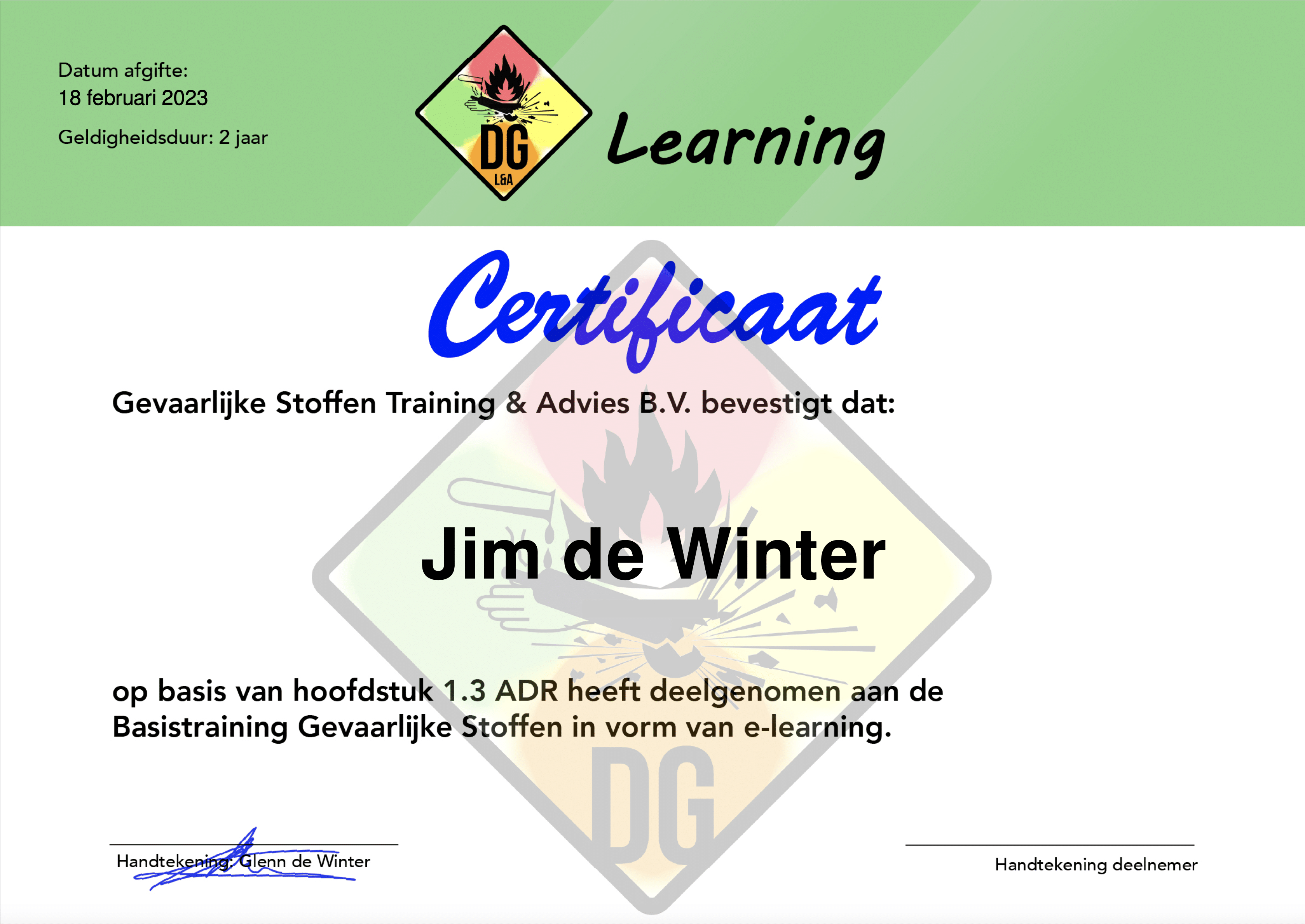
At the end of the training, after passing the “final test” with a satisfactory score of 70%, you will receive a personal certificate.
Success is guaranteed! If the final test is completed with a failing score, the final test can be reset. This can be done until a satisfactory score is achieved.
This certificate is valid for 2 years from the date the “final test” is completed. The certificate is easy to view and download from your account. The certificate is also sent to the specified email of the student and group leader. Group leaders are authorized to view and download all certificates of enrolled users in his/her group.